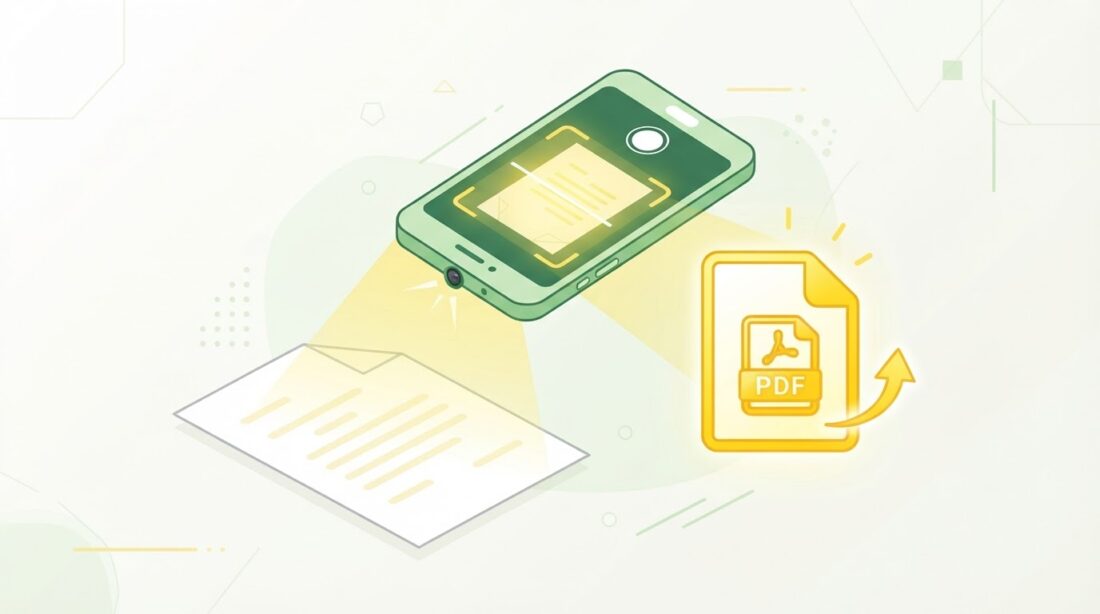
📱 Most Android phones can scan paper into a PDF with the Google Drive app. It is free, it is usually already installed, and the scan lands straight in your Drive so you can open it on any device.
📄 Scan with Google Drive
- Open the Google Drive app. If you do not have it, install it from the Play Store and sign in with your Google account.
- Tap the New button (the plus sign) at the bottom right.
- Tap Scan, then allow camera access if the phone asks.
- Hold the phone over the page and tap the shutter button. The scanner finds the page edges for you.
- Tap the check mark (OK) to keep the page. To add another page, tap the plus button and scan the next one.
- Tap Save, name the file, and choose the Drive folder.
The document is saved as a PDF. Open it in Drive and tap the three-dot menu to share it, download it or print it.
Button names and positions vary a little between app versions and phone brands. If you do not see Scan under New, look for a camera icon in the same menu.
🛠️ Fix a bad page
Before you save, you can retake the current page with the re-scan button, crop it again, or rotate it. If the edges were detected wrongly, drag the corners to fit the paper. After saving, you can still reopen the scan and edit it.
💡 Tips for a clean result
Lay the page flat on a plain, darker surface and use daylight or a lamp that does not cast a shadow of your hand. Keep the phone parallel to the page. A tilted phone makes the text look skewed even after the automatic crop.
You can also add a Drive scan widget to your home screen. Press and hold an empty spot on the home screen, tap Widgets, find Drive, and add the scan shortcut. It opens the scanner in one tap.