How to Free Up Space on Android With Files by Google

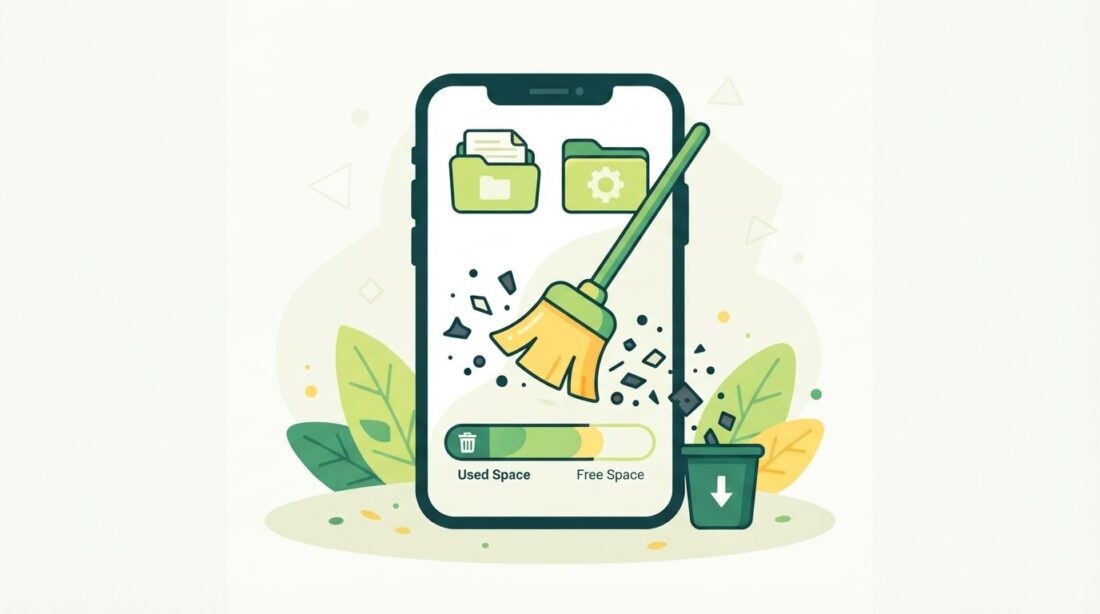
Illustration of a phone with a broom sweeping away junk files

📱 Files by Google is a free app that finds junk files, old screenshots, large files and unused apps on your Android phone and lets you remove them in one place. Many phones have it installed. If yours does not, it is on the Play Store.

🧹 Clean up in four steps

  1. Open Files by Google.
  2. Tap the Clean tab at the bottom. In some app versions it is under the menu button.
  3. Look through the suggestion cards, such as junk files, old screenshots, large files, duplicate files and unused apps.
  4. Tap a card, select the items you want to remove, and tap Delete.

Check each selection before you confirm. The app pre-selects items it thinks are safe to remove, but you know better than it does which screenshots or downloads matter.

🗑️ Empty the trash

Files you delete may go to a trash folder first, and they keep using space until the trash is emptied. Open the Files menu, tap Trash, and empty it if you want the space back immediately.

📦 Clear unused apps

The unused apps card lists apps you have not opened for a while. Uninstalling one frees its space, and you can always reinstall it from the Play Store. Your account data for most apps is stored online, but check an app before you remove it if it holds files only on the phone.

🖼️ Move photos off the phone

Photos and videos are usually the biggest users of space. If you use Google Photos, make sure backup is on and that the photos show as backed up. On Pixel phones, Smart Storage in the Files settings can remove backed-up photos that have been on the phone for about two months. Turn it on only if you are comfortable relying on the cloud copies.

Menu labels vary by app version and phone brand. If you cannot find Clean, update the Files app from the Play Store.
📚 Sources

How to Take Better Photos With Your Android Phone

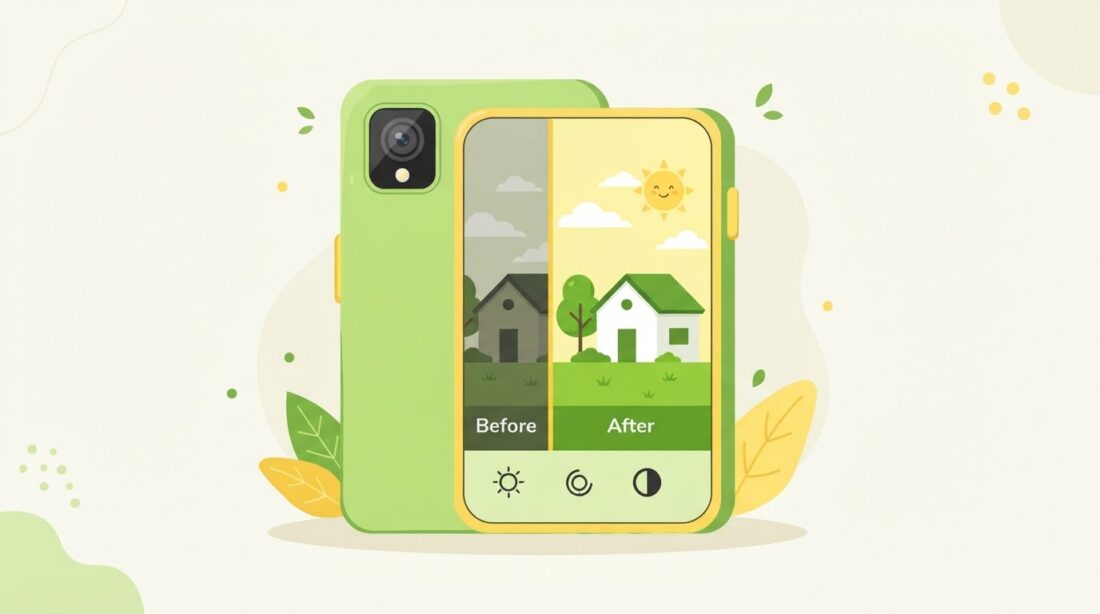
Illustration of a phone camera with a before and after photo

📱 You do not need a new phone to get better pictures. Most improvements come from habits and a few camera settings that are already on your Android phone.

🧼 1. Wipe the lens

A greasy lens makes every photo look foggy, and lights at night turn into smears. Use a soft, clean, lint-free cloth. A shirt hem works if you have nothing else, but avoid paper tissues, which can scratch.

👆 2. Tap the subject

Open the Camera app and tap the thing you want sharp. A circle or box appears where the phone focuses. On Google Pixel phones the circle follows a moving subject, and you can tap Lock to hold focus and exposure on it.

☀️ 3. Fix brightness before you shoot

After you tap, sliders appear on the screen. The sun-shaped one controls exposure. Drag it up to lighten a dark photo or down to rescue a bright sky. Pixel phones also show shadow and color temperature sliders. Other brands such as Samsung place a similar brightness slider next to the focus point.

📐 4. Turn on grid lines

Open the camera settings and look for Grid or Grid type. On a Pixel, go to Settings inside the Camera app, then More settings, then Grid type, and choose 3 x 3. Use the lines to keep horizons straight and to place your subject slightly off center.

💡 5. Use the light you have

Stand so that the light falls on your subject instead of behind it. A window is better than an overhead bulb. In dim rooms, turn on Night mode if your phone has it, and hold still for a couple of seconds while it captures.

Menu names vary by phone brand and Android version, so the labels on your phone may differ slightly from the ones above. If a setting is missing, check the camera app’s Settings screen or search for it by name.

📚 Sources

How to Scan a Document With Your Android Phone

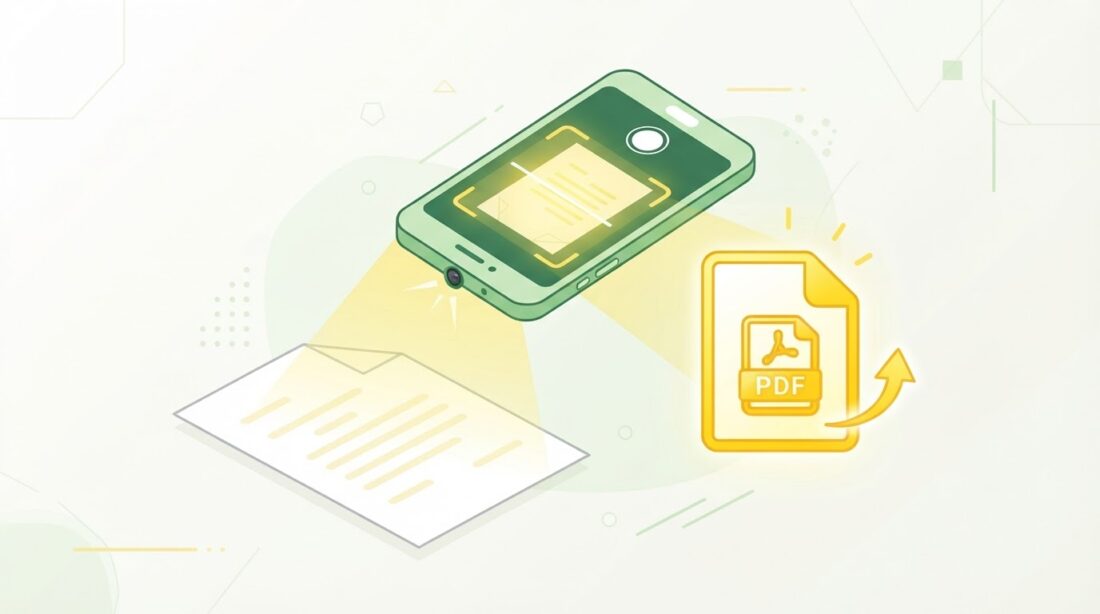
Illustration of a phone turning a paper page into a PDF

📱 Most Android phones can scan paper into a PDF with the Google Drive app. It is free, it is usually already installed, and the scan lands straight in your Drive so you can open it on any device.

📄 Scan with Google Drive

  1. Open the Google Drive app. If you do not have it, install it from the Play Store and sign in with your Google account.
  2. Tap the New button (the plus sign) at the bottom right.
  3. Tap Scan, then allow camera access if the phone asks.
  4. Hold the phone over the page and tap the shutter button. The scanner finds the page edges for you.
  5. Tap the check mark (OK) to keep the page. To add another page, tap the plus button and scan the next one.
  6. Tap Save, name the file, and choose the Drive folder.

The document is saved as a PDF. Open it in Drive and tap the three-dot menu to share it, download it or print it.

Button names and positions vary a little between app versions and phone brands. If you do not see Scan under New, look for a camera icon in the same menu.

🛠️ Fix a bad page

Before you save, you can retake the current page with the re-scan button, crop it again, or rotate it. If the edges were detected wrongly, drag the corners to fit the paper. After saving, you can still reopen the scan and edit it.

💡 Tips for a clean result

Lay the page flat on a plain, darker surface and use daylight or a lamp that does not cast a shadow of your hand. Keep the phone parallel to the page. A tilted phone makes the text look skewed even after the automatic crop.

You can also add a Drive scan widget to your home screen. Press and hold an empty spot on the home screen, tap Widgets, find Drive, and add the scan shortcut. It opens the scanner in one tap.

📚 Sources

XIAOMI MI-3 – how to hard reset my phone

Hard Reset XIAOMI MI-3

  • At the very beginning hold down the Power button to switch off the device.Reset XIAOMI MI-3
  • Afterwards press and hold the Volume Up + Power button for a couple of seconds.Reset XIAOMI MI-3
  • When the Mi Logo appears  on your screen release only the Power key.
  • Keep holding the Volume Up key until the Recovery Mode appears.Reset XIAOMI MI-3
  • In this step select English using Volume keys to browse and Power rocker to select.
  • Then select “wipe data/factory reset” by using Volume Down to scroll and Power button to confirm.Reset XIAOMI MI-3
  • Select “Yes–delete all user data“. Use Volume Down button to scroll and Power key to select.
  • To restart the device, select “reboot system now“.Reset XIAOMI MI-3
  • Success! The hard reset operation has just been performed.

Please continue to the original article for complete guide.

via XIAOMI MI-3 – how to hard reset my phone – HardReset.info.

WARNING !
Hard Reset will erase all of your data
All described operations you are doing at your own risk.

This Facebook Hack Allows You to Track Your Friends On Map

Remember the magical Marauder’s Map from the Harry Potter books that reveal the whereabouts of characters as they roam classrooms and the halls of Hogwarts school?

A student developer from Cambridge has created a Chrome extension that works similar and also named it Marauder’s Map.The extension that allows you to watch every footstep of your Facebook friends by grabbing location data from Facebook Messenger and rapidly plotting your friends’ locations on a map.

We all are aware that Facebook shares our location data with our friends, however, what we probably aren’t aware of the accuracy of that data and easiness of extracting that data from the messaging service.

LOCATION SHARING AND MAPPING…Facebook usually encourages Messenger users to share their location by enabling location sharing by default when users install iOS or Android app.

Software developer Aran Khanna’s extension dubbed Marauder’s Map, loads the map in Messenger’s Web interface and fetches the data from…(continued)